검색결과 리스트
VSCode ChatGPT에 해당되는 글 2건
글

Codex – OpenAI’s coding agent is an official OpenAI extension for VSCode that connects directly through your ChatGPT account login — no API key required. It allows you to write, refactor, debug, and review code interactively inside the IDE, and even delegate tasks to a cloud environment when needed. (As of Oct 24, 2025, available only for ChatGPT Plus and higher-tier users)
1. Overview
- Installation: VSCode → Extensions → “Codex – OpenAI’s coding agent”
- Login: Sign in directly with your ChatGPT account (no API key required)
- Modes: Chat / Agent / Agent (Full access)
- Environment: Local or Cloud Sandbox
- Models: GPT-5 or GPT-5-Codex (with adjustable reasoning levels)
2. Installation Steps
- Open the Extensions tab in VSCode (
Ctrl + Shift + X) - Search for
Codex – OpenAI’s coding agentand click Install - Or visit the VSCode Marketplace link
💡 For Windows users, running inside WSL provides better compatibility.
3. First Launch & Login
- Click the Codex icon in the sidebar (left or right)
- Select Sign in with ChatGPT
- Sign in via your browser → return to VSCode and you’re automatically connected
This method connects instantly through your account without requiring an API key.
4. Codex Panel Overview
① Panel & Input Field
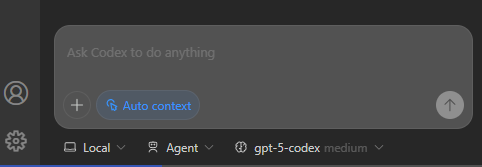
From the bottom panel, you can switch between Local/Cloud environments, Modes, Models, and Reasoning levels instantly.
② Model Selection Dropdown
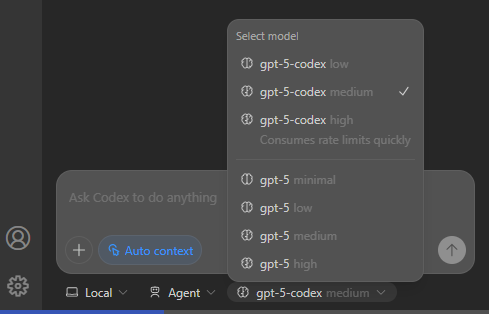
The default model is GPT-5, but you can switch to GPT-5-Codex for code-focused reasoning.
③ Mode Switching
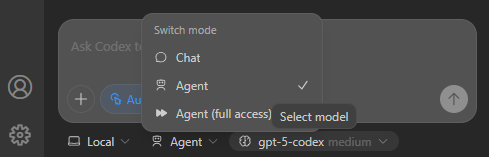
- Chat: General dialogue and design discussion
- Agent: Can read, modify files, and execute commands
- Agent (Full access): Full access without confirmation (use with caution)
5. Example Prompts
- Code generation:
Create a Todo app scaffold using React + Vite. - Refactoring:
Optimize N+1 queries in user.ts and add caching. - Debugging:
Find the cause of a memory leak in prod builds and suggest fixes. - Code review:
Review the last 3 commits for security and performance issues.
6. Pro Tips
- 💡 Run heavy tests in Cloud mode and review results locally.
- 🔒 Use Chat mode only when working with confidential repositories.
- ⚙️ GPT-5-Codex is optimal for refactoring and system design.
- 🪟 On Windows, enable WSL integration for smoother operation.
7. Important Notes
- Never send sensitive or internal source code when using Cloud mode.
- Check usage limits depending on your ChatGPT plan (Plus, Pro, Business, Enterprise).
🔗 References
- Codex – OpenAI’s coding agent (VSCode Marketplace)
- Official OpenAI Codex IDE Documentation
- OpenAI Official Website
설정
트랙백
댓글
글
VSCode에서 ‘Codex – OpenAI’s coding agent’ 연동 및 사용법

Codex – OpenAI’s coding agent는 VSCode에서 ChatGPT 계정 로그인만으로 바로 연동되는 OpenAI의 공식 코딩 에이전트 확장입니다. 코드 작성, 리팩토링, 버그 수정, 리뷰까지 IDE 안에서 대화형으로 처리하고, 필요 시 클라우드 작업으로 위임할 수 있습니다. (2025.10.24 기준으로 ChatGPT Plus이상 유료 사용자만 지원)
1. 요약
- 설치: VSCode 확장 → “Codex – OpenAI’s coding agent” 설치
- 로그인: ChatGPT 계정으로 직접 로그인 (API Key 불필요)
- 모드: Chat / Agent / Agent (Full access)
- 작업 환경: 로컬 또는 클라우드 샌드박스
- 모델: GPT-5 또는 GPT-5-Codex (Reasoning 단계 조절 가능)
2. 설치 방법
- VSCode 왼쪽 Extensions 탭 열기 (단축키:
Ctrl + Shift + X) - 검색창에
Codex – OpenAI’s coding agent입력 후 Install 클릭 - 또는 마켓플레이스 바로가기 이용
💡 Windows 사용자는 WSL 환경에서 실행 시 호환성이 더 좋습니다.
3. 첫 실행 및 로그인
- 좌측 또는 우측 사이드바에서 Codex 아이콘 클릭
- Sign in with ChatGPT 선택
- 브라우저에서 OpenAI 계정 로그인 → VSCode로 돌아오면 자동 연동 완료
이 방식은 별도의 API 키 등록 없이 계정 인증만으로 즉시 연결됩니다.
4. Codex 패널 UI 살펴보기
① 패널 & 입력창
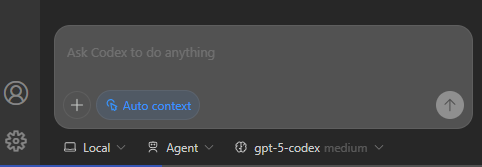
패널 하단에서 Local/Cloud, Mode, Model, Reasoning 단계를 바로 전환할 수 있습니다.
② 모델 선택 드롭다운
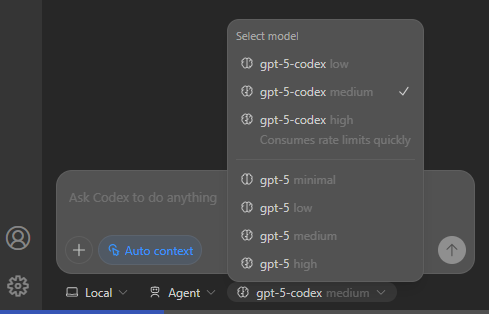
기본은 GPT-5이며, 코딩 특화 GPT-5-Codex로 전환 가능합니다.
③ 모드 전환
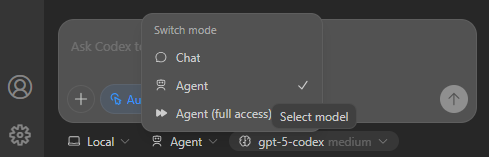
- Chat: 단순 대화 및 코드 설계
- Agent: 파일 읽기, 코드 수정, 명령 실행 가능
- Agent (Full access): 승인 없이 전체 권한 접근 (보안 주의)
5. 사용 예시 프롬프트
- 코드 생성:
React + Vite로 Todo 앱 초기 프로젝트 생성해줘. - 리팩토링:
user.ts의 N+1 쿼리 최적화 및 캐시 추가해줘. - 디버깅:
prod 환경에서 메모리 릭 원인 분석 및 테스트 케이스 제안해줘. - 코드리뷰:
최근 커밋 기반으로 보안/성능 리뷰 코멘트 작성해줘.
6. 실무 팁
- 💡 대규모 테스트는 클라우드 모드에서 실행 후 결과만 IDE에서 확인
- 🔒 보안 이슈가 있는 리포지토리는 Chat 모드로만 작업
- ⚙️ GPT-5-Codex는 리팩토링/설계 작업에 최적
- 🪟 Windows 사용 시 WSL 통합 모드 추천
7. 주의사항
- 조직 내부 코드나 민감한 데이터는 클라우드 모드에서 전송하지 마세요.
- Plus, Pro, Business, Enterprise 플랜별 사용량 정책을 확인하세요.
🔗 참고 링크
※ 스크린샷은 OpenAI 개발자 문서 기준. 최신 버전에 따라 UI가 다를 수 있습니다.